
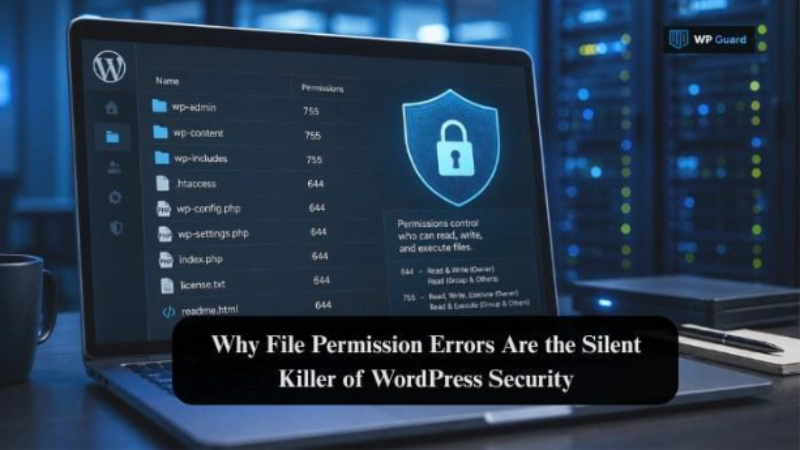
Most website owners keep plugins updated and stay on top of theme changes, but file permissions often get overlooked. When those access controls are too open, attackers can modify files, upload malicious code, or regain access after a cleanup. A single misconfigured folder can leave your WordPress site wide open. We’ve reviewed plenty of sites where the damage traced back to one overlooked setting. That hands-on experience is why our team at WP Guard checks folder settings closely during routine security reviews.
The article covers what file permissions really control and how loose settings create hidden backdoors. We’ll also walk through the exact numbers you need to keep your WordPress files secure.
What Are WordPress File Permissions, and Why Do They Count?
WordPress file access settings decide who can read, write, or run a PHP file on your server. Get them wrong, and you’ve basically left a door unlocked. Every core WordPress file depends on the right permission setting to stay protected.
File permissions may sit deep in your hosting panel, but they directly affect how secure your WordPress installation remains. Weak settings can leave sensitive files exposed and give attackers an easier path into your site.
Here’s where these settings usually go wrong first:
The .Htaccess File and What It Controls
Ever wondered what’s really stopping someone from rewriting your site’s traffic rules? It’s the .htaccess file, and it needs the right permission setting to do its job properly.
This file controls redirects, blocks certain requests, and can even stop unauthorized scripts from running. If you loosen its permissions, malicious code can rewrite those rules without you noticing. That’s a fast way to lose control of your own server without a single warning sign.
For the best protection for your .htaccess file, set the numbers to 644, since even a small change to that number affects what it protects.
Directory Listing: The Setting Most Sites Get Wrong
Turning off directory listing keeps your file system invisible to anyone poking around where they shouldn’t be. If you leave it enabled, anyone who finds the link will see every file stored in that folder.
Honestly, we see this one missed constantly on client sites. Attackers use exposed listings to map out a WordPress installation and spot outdated plugins fast.
The consequences don’t stop with security threats. Search engines can also index folders you never intended to make public. Disabling directory listing takes minutes, and it closes a gap most site owners never think to check.
Can Loose Permissions Really Create Hidden WordPress Backdoors?
Yes, loose file access settings are one of the easiest ways for a WordPress backdoor to slip in and stay put. A single writable folder can give an attacker enough room to gain access without triggering any alarms.
Once that access exists, hidden WordPress backdoors often survive a full cleanup. The malicious file just sits there, waiting to be reused after everything else looks fixed.
Now have a look at what makes things worse, and why weak accounts only add fuel to the fire:
How Malicious Scripts Slip in Through Plugins and Themes
Most site owners blame hackers for a breach, but the real entry point is usually an outdated plugin sitting in the background. Plugins and themes are the most common way malicious scripts get onto a WordPress site.
In our own audits, outdated plugins show up as the entry point more than anything else, but vulnerable folder permissions can make the damage worse. For example, a writable uploads folder lets attackers drop malicious files disguised as ordinary media files.
From there, one infected plugin can create a backdoor that reinfects the site after the first cleanup. That’s why checking plugins and themes regularly counts just as much as fixing settings.
Password Protection and Admin Accounts: The Other Half of the Story
Strong password protection buys you real security, but only if your file permissions aren’t already working against you. Weak admin accounts pair badly with loose access, and together they open two doors instead of one.
A guessed login combined with writable files gives an attacker far more than a single administrator account. Limiting login attempts on the login screen stops brute force attacks before they get far.
Even so, a strong user account won’t save you if the file system underneath is still wide open. Lock down both, or the weaker one undoes all your effort on the other.
Hardening WordPress: Fixing Access Settings the Right Way
Hardening WordPress starts with setting correct file permissions, and it’s one of the simplest fixes with real payoff. A few security measures done right stop most attacks before they ever reach your files.
That said, permission numbers only work if you’re using the right security tools to check them. Guessing at settings causes more harm than leaving them alone.
Here’re the exact numbers to use and how to keep them locked in over time:
The File Permission Numbers You Should Really Use
Based on what we’ve seen across client sites, wrong permission numbers cause more downtime than actual attacks. Most WordPress installations need only a handful of settings to stay locked down.
The following table covers the ones that count most:
| File or Folder Type | Recommended Permission | What It Means |
| Folders | 755 | Owner can read, write, and run. Others can read and run only |
| Files | 644 | Owner can read and write. Others can read only |
| wp-config.php | 600 or 640 | Only the owner (or owner and group) can read this file |
| .htaccess file | 644 | Server can read and apply rules; no public write access |
| wp-content | 755 | Keeps uploads and themes accessible without opening write permissions |
Getting even one number wrong either blocks your WordPress server from running or leaves sensitive files exposed to anyone who finds them. You can remove most of that risk by setting the numbers correctly the first time.
Keeping It Locked Down Long-Term
The job doesn’t end once access settings are set. Settings can drift after plugin updates, server configuration changes, or hosting migrations, especially when files move between environments
Regular audits catch a site’s security issues before they turn into a real incident. This is one of the good security habits that separates sites that get hacked from ones that don’t.
Locking down access only helps if someone regularly checks that it stays that way. A permission setting isn’t a set-and-forget job, even if it looked solid on day one.
Don’t Let Permissions Be Your Blind Spot
File access controls rarely make headlines, but they’re one of the easiest ways attackers get into a WordPress site and stay there. Most breaches trace back to something this small rather than some elaborate hack.
Setting the right numbers is only half the job. Regular checks count just as much, especially after updates, migrations, or a new plugin install.
At WP Guard, we regularly find weak file permissions during routine security scans. Fixing them early helps close off unnecessary access and reduces the chance of a minor weakness becoming a full site compromise.